Get the most out of CoreMaster.
Every feature, explained step by step – searchable.
⬇ Getting started
From zero to first picture – in minutes.
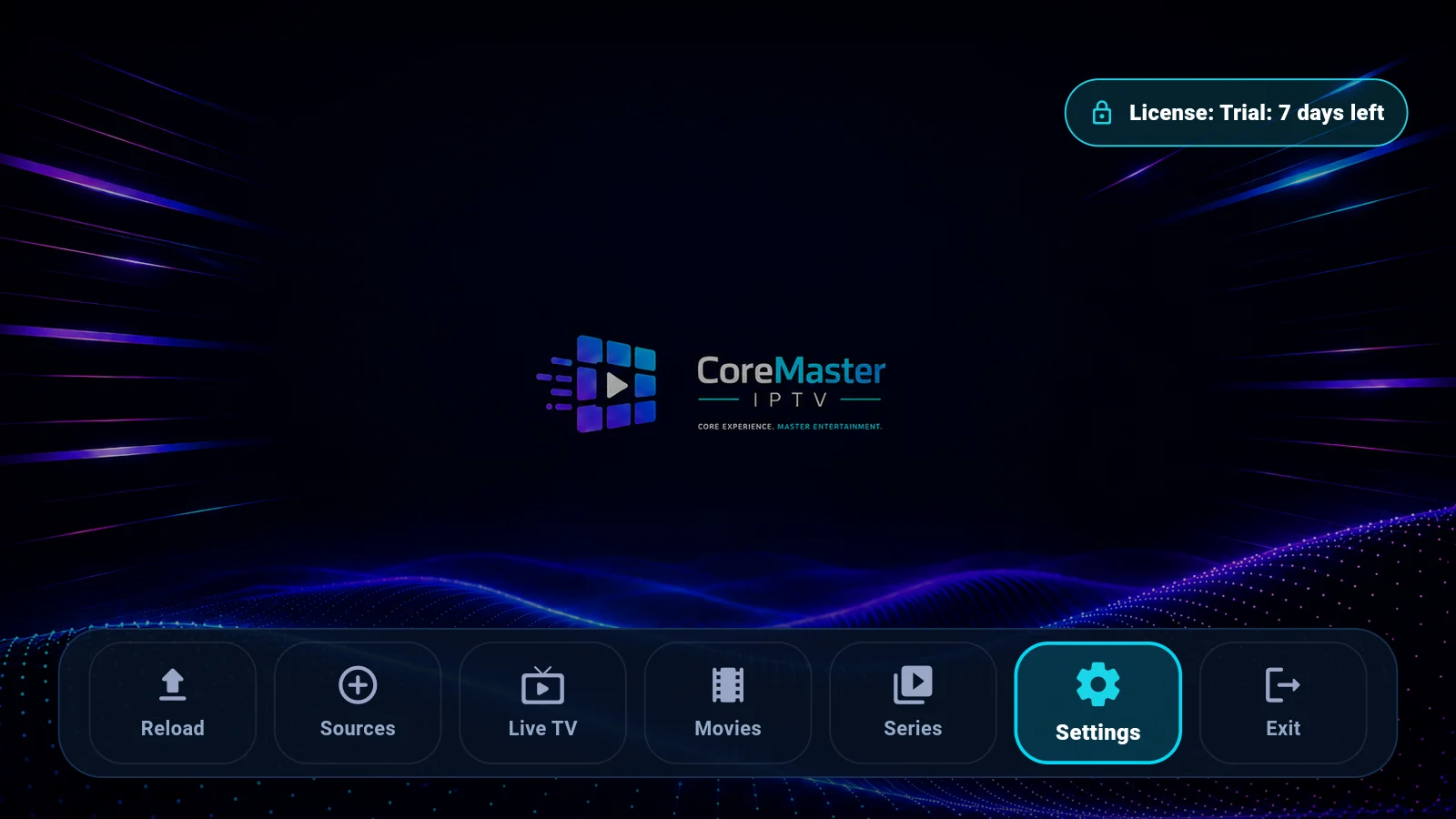
How do I install the app?
Easiest via Google Play (recommended for devices with Play Store). For TV boxes without Play Store there is the direct APK on our download page – with a step-by-step guide and checksum.
How do I add my first source?
Home → Sources → Add. Pick the type (Xtream, XUI.One, 1-Stream, M3U/M3U8 or Stalker) and enter your provider's credentials. CoreMaster ships no content – you connect only your own sources.
The trick: type credentials on your phone (QR)
In the Add dialog tap “Fill in on your phone (QR)”: the TV shows a QR code, you scan it with your phone camera (same Wi-Fi) and type everything on the phone keyboard. The values jump straight into the TV form – the link works exactly once and nothing touches the internet.
How does the trial work?
Every new device gets a full 7-day trial – no account, no payment details. Afterwards you activate per device: 1 year or lifetime.
Can I activate before the trial ends?
Yes, anytime. Play version: right in the app under “Sources” (tap “1 year” or “Lifetime”). Direct version: via the QR code on the sources page or coremasteriptv.de/activate-en.html.
◉ Using it on TV
Built for the remote – everything reachable without a mouse.
How do I know where I am?
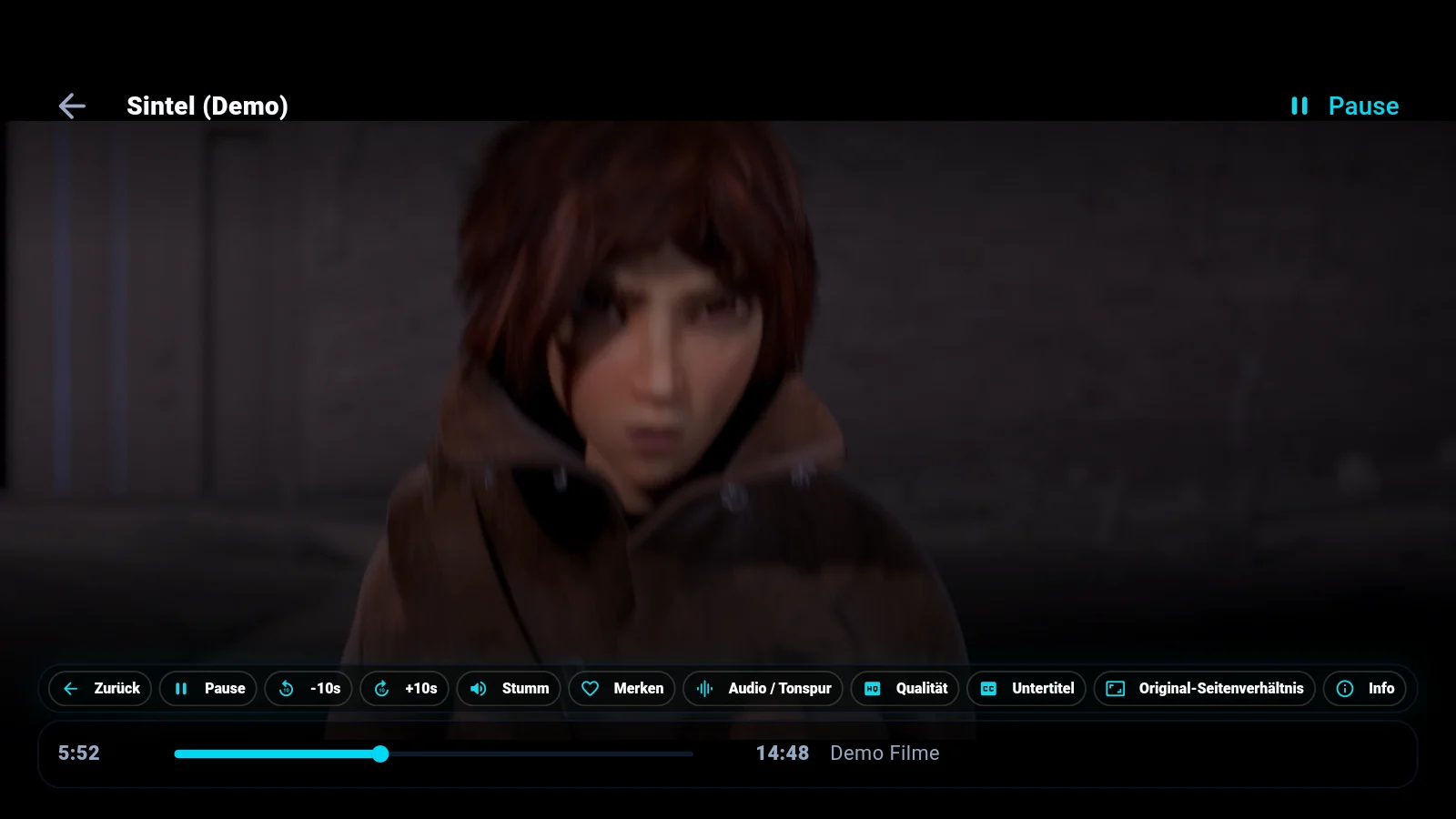
The bright focus ring always marks the active element. One press of Back always goes exactly one level up – all the way to the home screen.
Which keys work in the player?
OK/arrows reveal the bar and drive the buttons. With the bar hidden: left/right seeks in movies and series (hold = faster), M mutes, F cycles the aspect ratio.
How do I zap between channels?
Right in the running picture: with the bar hidden, Up switches to the next and Down to the previous channel of the current category – with a short channel overlay. The program keys (P+/P−) always zap, even via HDMI-CEC with your TV remote. On the phone: just swipe up or down on the video.
Typing without frustration
All forms open a dedicated full-screen input – no focus chaos with the on-screen keyboard. And for credentials there is the QR way via your phone (see Getting started).
Searching with the remote
Confirming keeps the results (the first row is highlighted), Back or the X cancel the search completely. While a filter is active, the search button glows reddish – one press on it or switching categories clears it.
▤ Live TV, movies & series
Order your way – even with 100,000+ titles.
How do I find things fast?
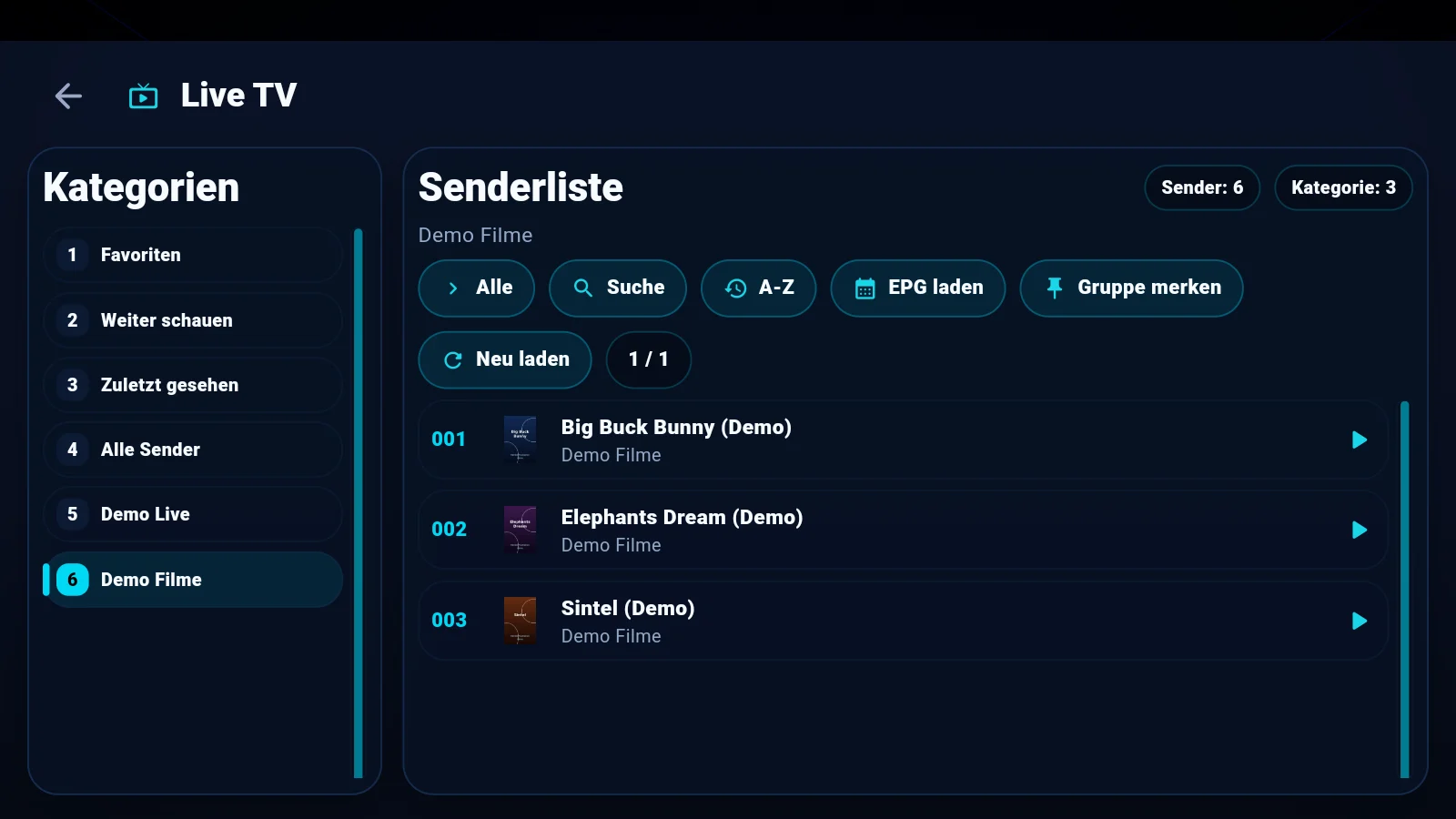
Every list has instant search and sorting (default/A–Z). Search responds immediately, even with huge libraries.
Pin, hide or lock categories
Long-press a category (or use “Remember group”) to pin it on top. In Settings you can hide or lock categories and even switch off entire sections (e.g. series).
Adjust the view
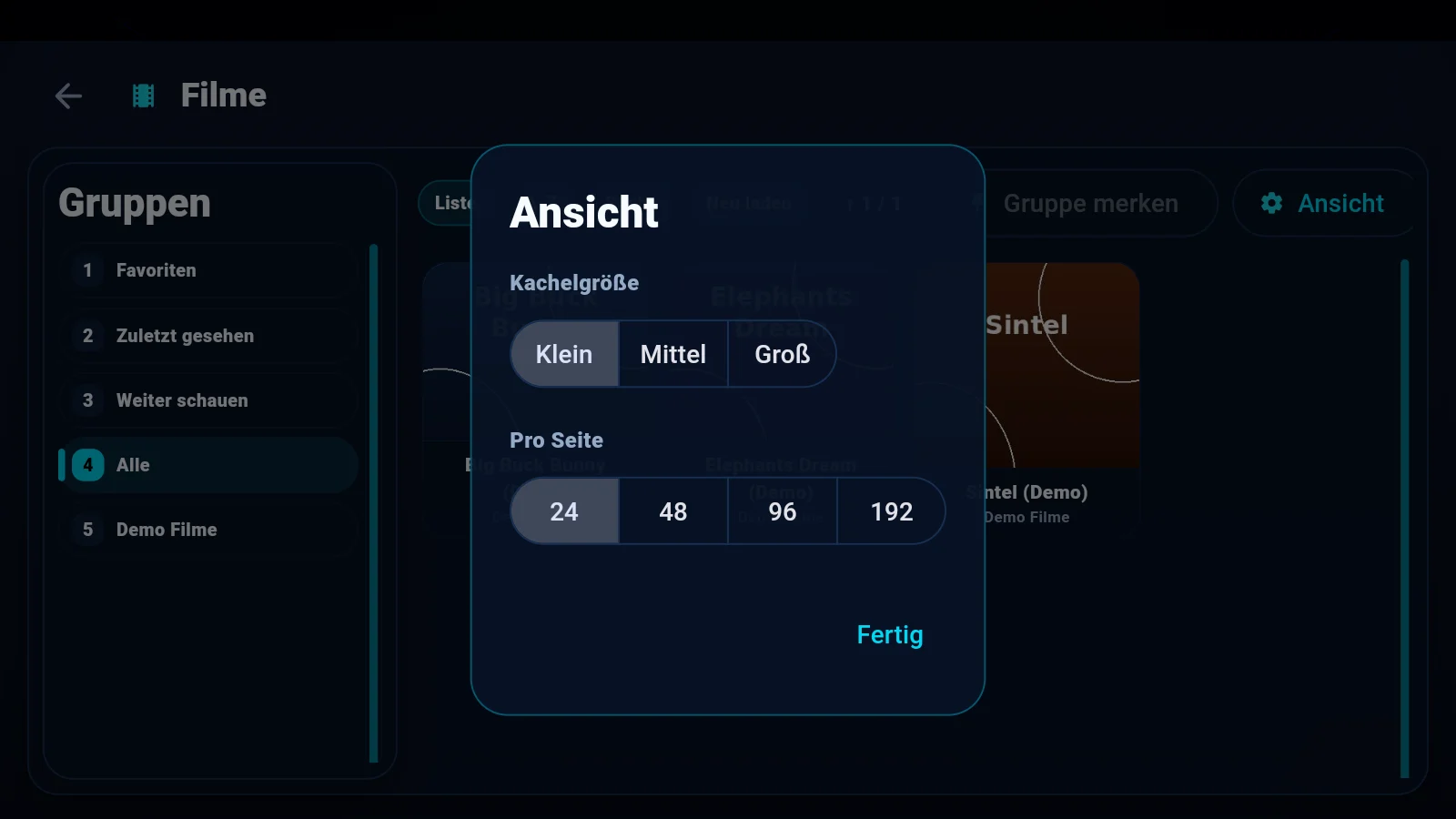
The “View” button sets tile size (small/medium/large) and how many entries load per page – ideal to tune lists for TV or tablet.
Favorites & history
♡ bookmarks channels and titles; “Recently watched” and “Continue watching” fill automatically.
▶ Continue watching
The app remembers where you were – everywhere.
Movies from the last minute
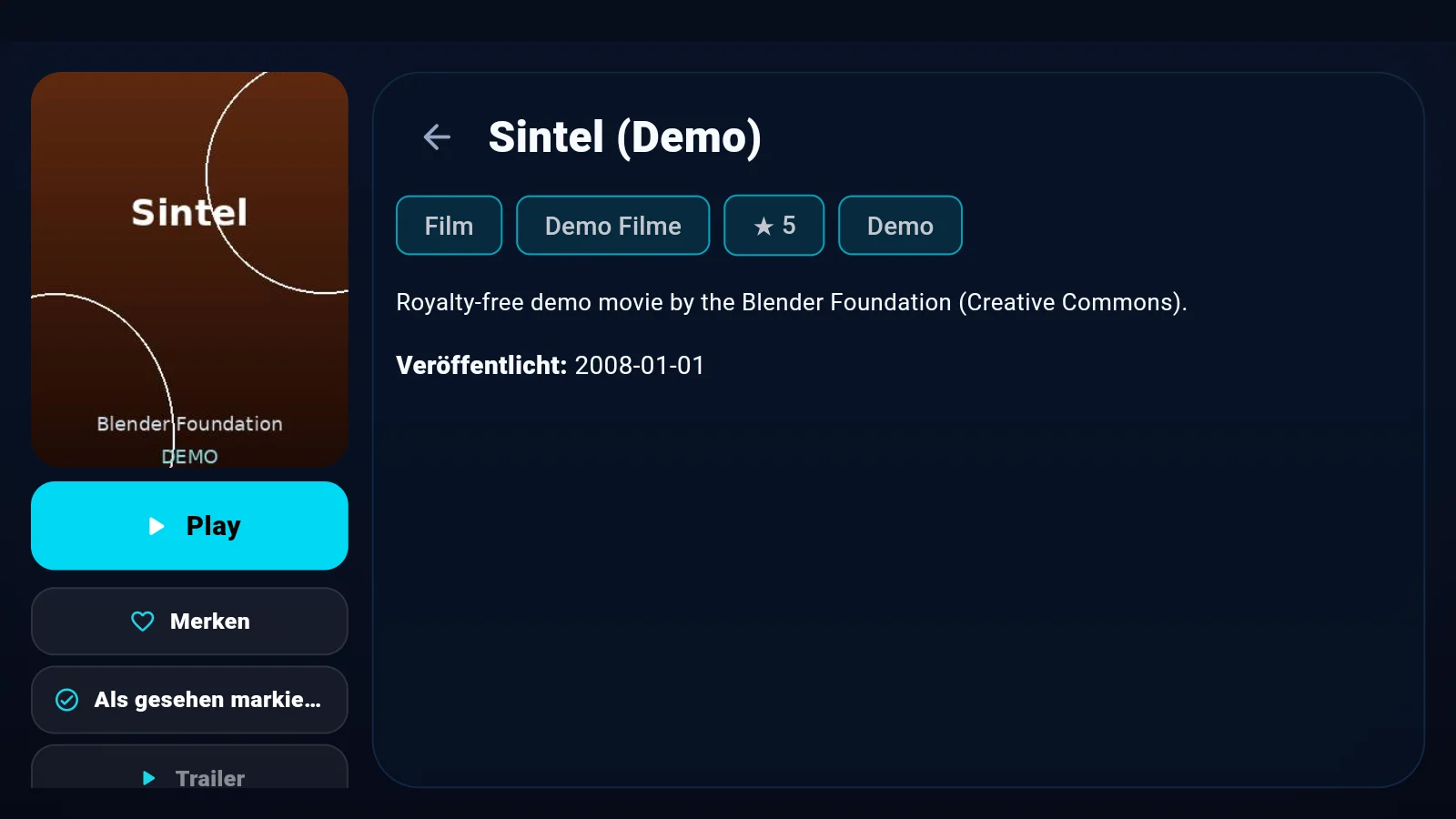
On reopening, the player offers “Continue from minute X”. Progress is saved every few seconds while playing.
Series memory
CoreMaster remembers season and episode per series – the continue button jumps to the right spot across seasons.
⇄ Local network: pair, sync & stream
The signature feature – serverless, private, on your own Wi-Fi.
Pair devices
On the target: Settings → Local network → “Make visible”. On the other device “Search device”, tap the target – both show the same 6-digit code, press OK on the target. Done, without typing anything.
Transfer sources & settings (sync)
“Transfer (Sync)” sends your sources and app settings to the paired device – a new box is set up in a minute. License, language and favorites stay per device on purpose.
Stream a movie to the TV
On the movie page on your phone: “Stream to device” → pick the target (unpaired devices are paired right in the dialog) → press “Play” on the TV. The TV even takes over your continue-watching position – and fetches the stream itself afterwards, your phone can go to sleep.
Device not found?
Both devices must be on the same Wi-Fi and “Make visible” must stay open on the target. Some routers separate 2.4/5 GHz networks or have client isolation enabled – put both devices on the same network or disable isolation and search again.
⚙ Player fine-tuning
Picture and sound the way you want.
Aspect ratio & seek steps
Aspect ratio (original/fill/stretch) right in the player via F or the bar; seek steps (1×/2×/3×/6×) live in the player settings.
Subtitles
Subtitle size and color are adjustable; pick subtitle and audio track from the bar.
Hardware decoding
In player settings: Automatic (recommended), Force or Off. The info panel shows codec and active decoding mode live – handy for stutter diagnosis.
4K stutters?
If 4K H.264 stutters on weaker boxes, the chip is usually at its limit. Tip: pick the HEVC (H.265) version of the same content – modern hardware decodes it far more efficiently.
Picture-in-picture (phone/tablet)
While something is playing, pressing Home shrinks the video into a floating window that keeps playing. Tap the window to return to the app, close it to stop playback. Deliberately disabled on TV.
♫ Music & radio
Radio and music channels in their own section – zapping included.
How do channels get into the music section?
Three stages: unmistakable stream addresses (.mp3/.aac), name detection (“radio”, “fm”, “music”) – and manually: “Choose music categories” lists all your provider’s categories to tick. The selection is saved; “Automatic” restores detection.
Do those channels disappear from live TV?
No – live TV keeps showing everything. The music section is an additional view with its own history.
Its own history
“Recently watched” is separate per section: music playback never shows up in the live TV history – and vice versa. Movies and series keep their own histories too.
⭳ Updates
Always current – your way.
Google Play version
Updates arrive automatically via the Play Store – nothing to do.
Direct version (APK)
The app announces new versions on start (once per version) and installs them with one tap. Anytime manually: Settings → Info → “Check now” – that always gives feedback.
🛡 Privacy explained
Private by architecture, not by promise.
What stays on the device?
Your sources and credentials – encrypted and local only. CoreMaster has no source cloud and no user account; nobody can see what you watch.
What is the server for, then?
Only license, trial and payment – per device, without an account. Pairing, syncing and streaming between your devices run entirely on your own Wi-Fi, serverless.
🛠 Troubleshooting
The most common cases – and their fix.
License shows trial although paid?
Close the app completely and restart it with internet – it re-syncs its license with the server automatically (also after a reinstall). If it persists: compare the device ID in the app with the one used at purchase and contact support.
New device – take the license along?
The license is tied to the device ID. It survives a reinstall on the same device – but not a different device or a factory reset, because the ID changes then. In those cases open Settings → Info → “Request device change” in the app: your TV shows a QR code, you scan it with your phone and fill in a short form there (device ID of the new device, the e-mail address and order number from your purchase, and the reason). We check every request by hand and reply by e-mail. Note: after the transfer the previous device loses access to the license.
Stream won't start
Refresh the source with “Reload” and check the credentials. If a single title fails, it's almost always the source itself – try another title of the same category.
No update prompt
The start prompt appears once per version (dismissing counts as “later”). Settings → Info → “Check now” always works.
Picture stutters
See Player fine-tuning → hardware decoding and the 4K/HEVC tip.
Nothing found – try another term.